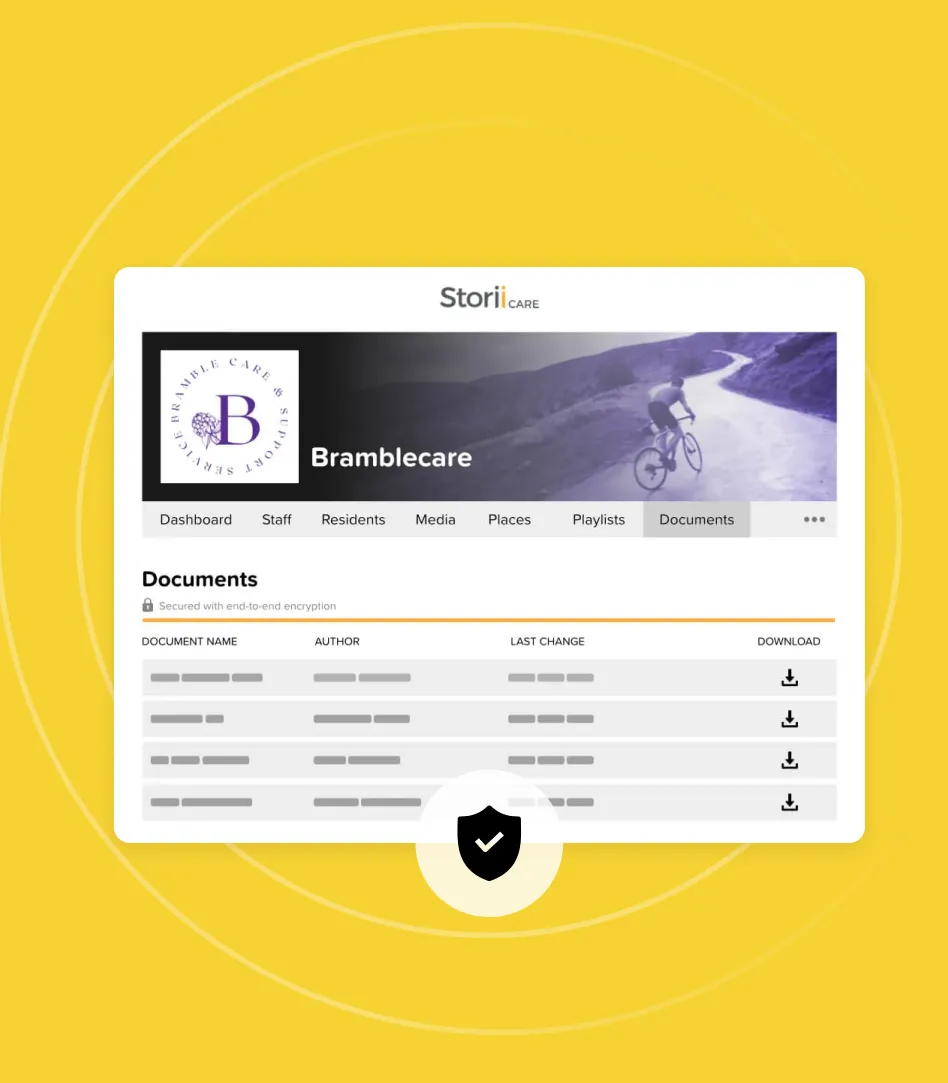
A StoriiCare trabalha constantemente no desenvolvimento de novas funcionalidades poderosas e melhorias de produto. Aqui está um breve resumo das nossas atualizações mais recentes:
Destaques Rápidos
- Envio Direto de Reivindicações (Stedi) – Envie reivindicações 837 diretamente através do nosso novo parceiro de câmara de compensação sem sair do StoriiCare
- Verificações de Elegibilidade no StoriiCare – Confirme a cobertura ativa, benefícios e detalhes do pagador sem sair do StoriiCare
- Criação de Perfil de Participante Usando Formulários – Quando um formulário é enviado, um perfil pode ser criado, otimizando o seu processo de inscrição
- Modelos de Plano de Cuidados – Preencha previamente seções de um Plano de Cuidados dentro de categorias específicas
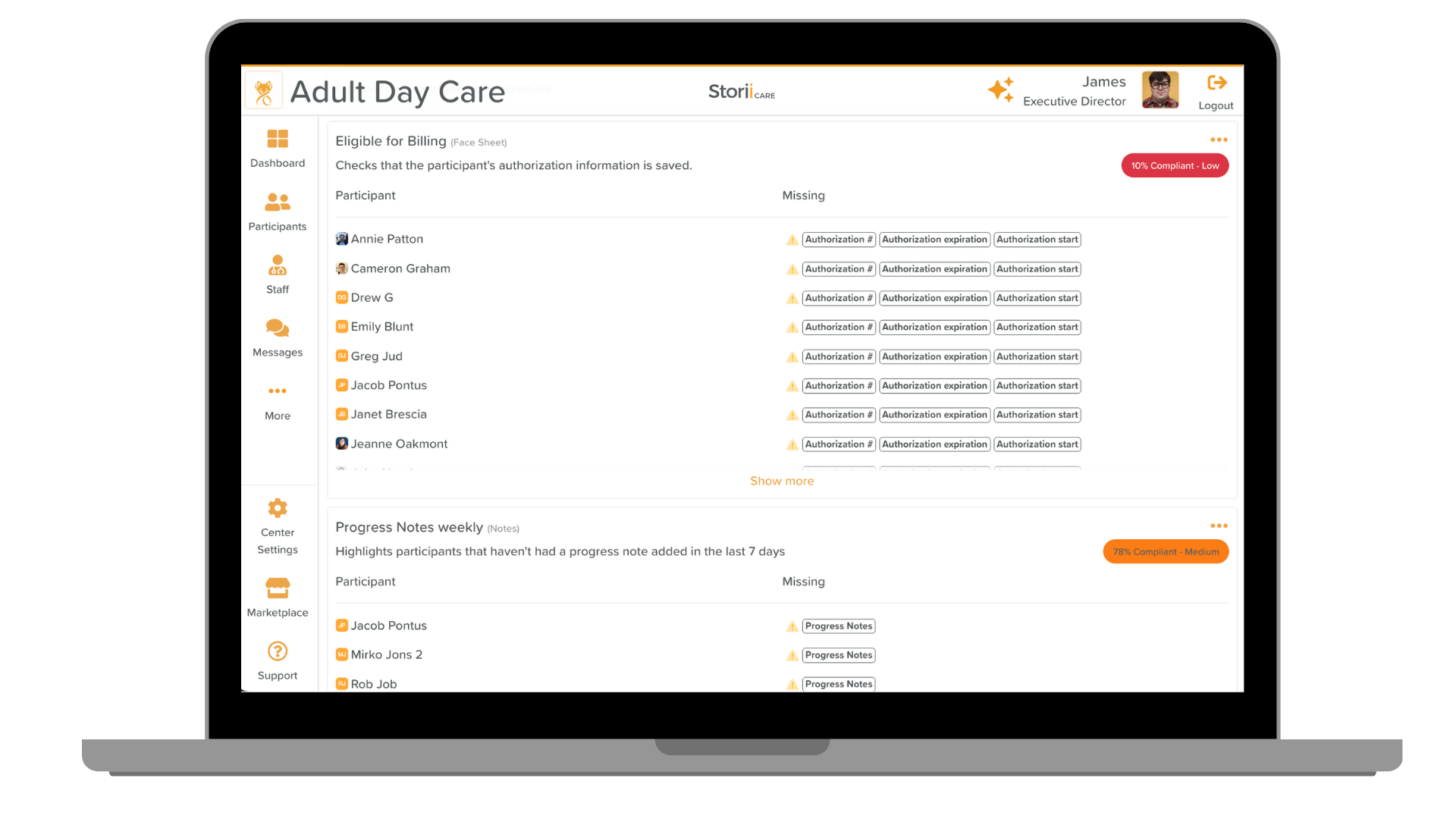
- NOVO Painel de Conformidade – Configure verificações automáticas de conformidade para a Ficha de Identificação, Sinais Vitais, e Notas
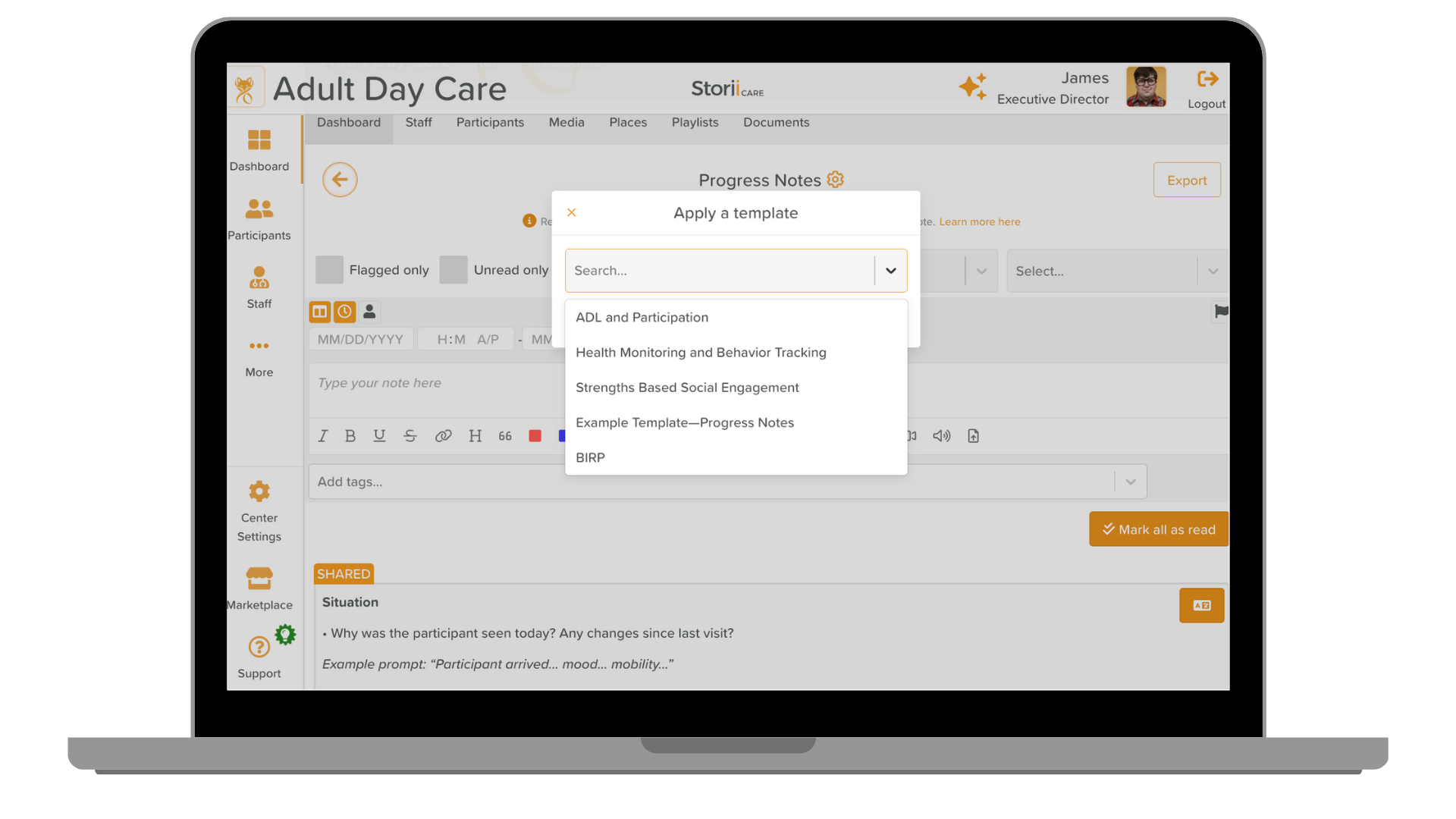
- Modelos de Notas de Progresso – Carregue modelos estruturados diretamente nas Notas de Progresso
Atualizações Menores
- Gráfico MAR – Seleção habilitada para o mês seguinte para que você possa imprimir com antecedência
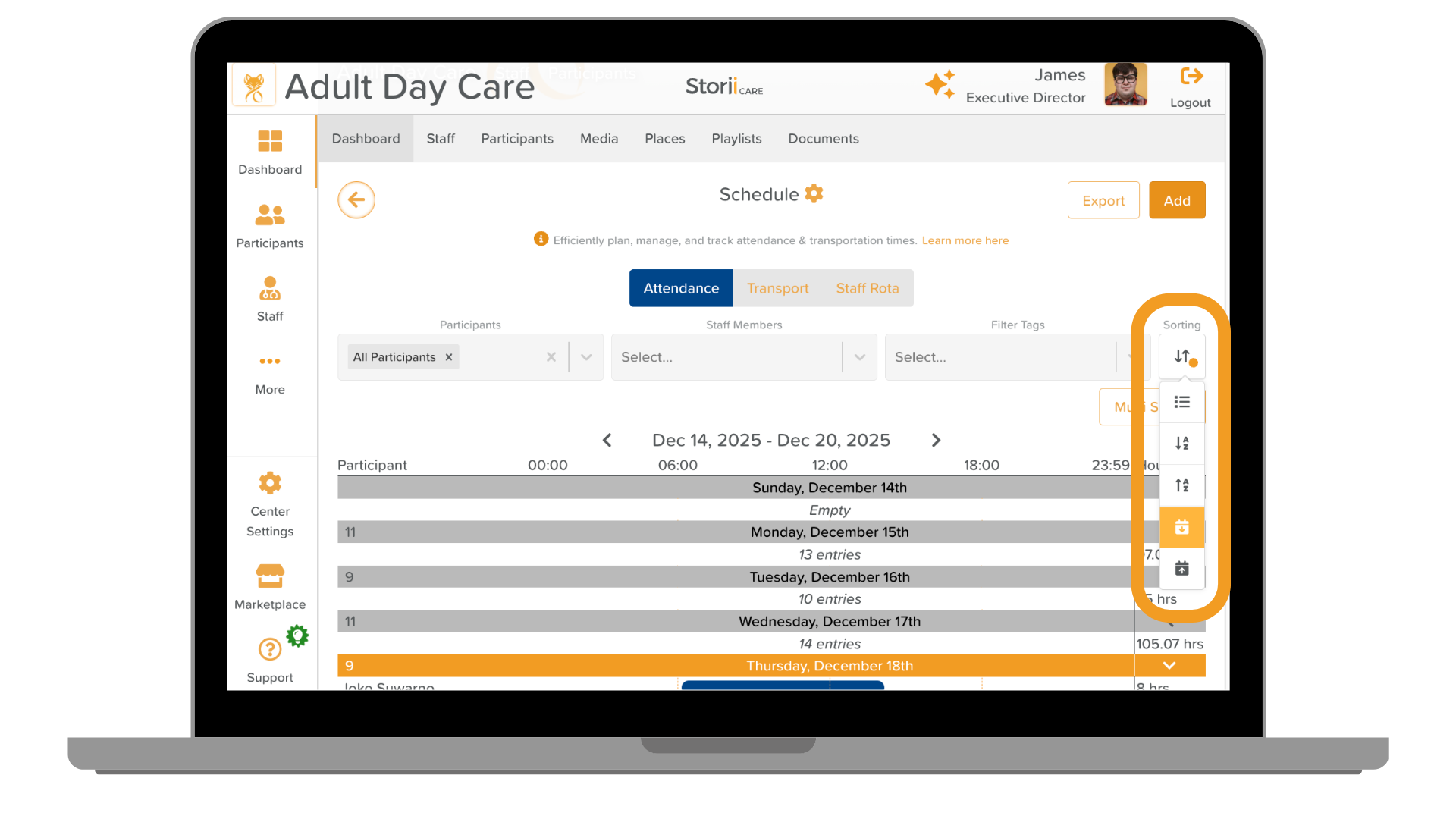
- Filtros em ordem alfabética – Aplique sua configuração de ordenação preferida nas abas de Equipe e Participantes, Grupos e Agenda
- Novo ícone de Tarefas – Tarefas acionadas automaticamente pelo sistema agora exibem indicadores visuais.
🧾 StoriiCare × Stedi: Envios diretos 837
Temos o prazer de anunciar que o StoriiCare agora oferece integração direta com a Stedi, nossa parceira de câmara de compensação preferencial. O StoriiCare agora se integra diretamente à rede da Stedi!
- Use o portal web intuitivo da Stedi para enviar verificações de elegibilidade e solicitações (os custos são cobertos para clientes StoriiCare).
- Envie solicitações para a Stedi diretamente da sua conta StoriiCare.
Por que isso é importante para você
- Fluxo de trabalho mais rápido e focado em API: Otimize as verificações de elegibilidade e o envio de solicitações, tudo dentro do StoriiCare.
- Sem custos ocultos: Envie solicitações e verificações de elegibilidade sem custo adicional para sua instituição.
- Tranquilidade e conformidade: Esta integração oferece suporte a trilhas de auditoria completas, remessas e respostas dos pagadores.
Confira este artigo: Parceria StoriiCare e Stedi
.png)
✅ Realize verificações de elegibilidade no StoriiCare
Uma aba de Elegibilidade agora está acessível emFaturamento . A partir daqui, os usuários podem realizar verificações de elegibilidade para participantes inserindo o Nome, ID do Membro, Pagador e os códigos do tipo de serviço solicitado. A coluna Status mostrará se uma solicitação está Ativa ouFalhou
. Clicar em uma verificação de elegibilidade fornecerá informações mais detalhadas sobre o plano e os benefícios do participante. Confira este artigo:
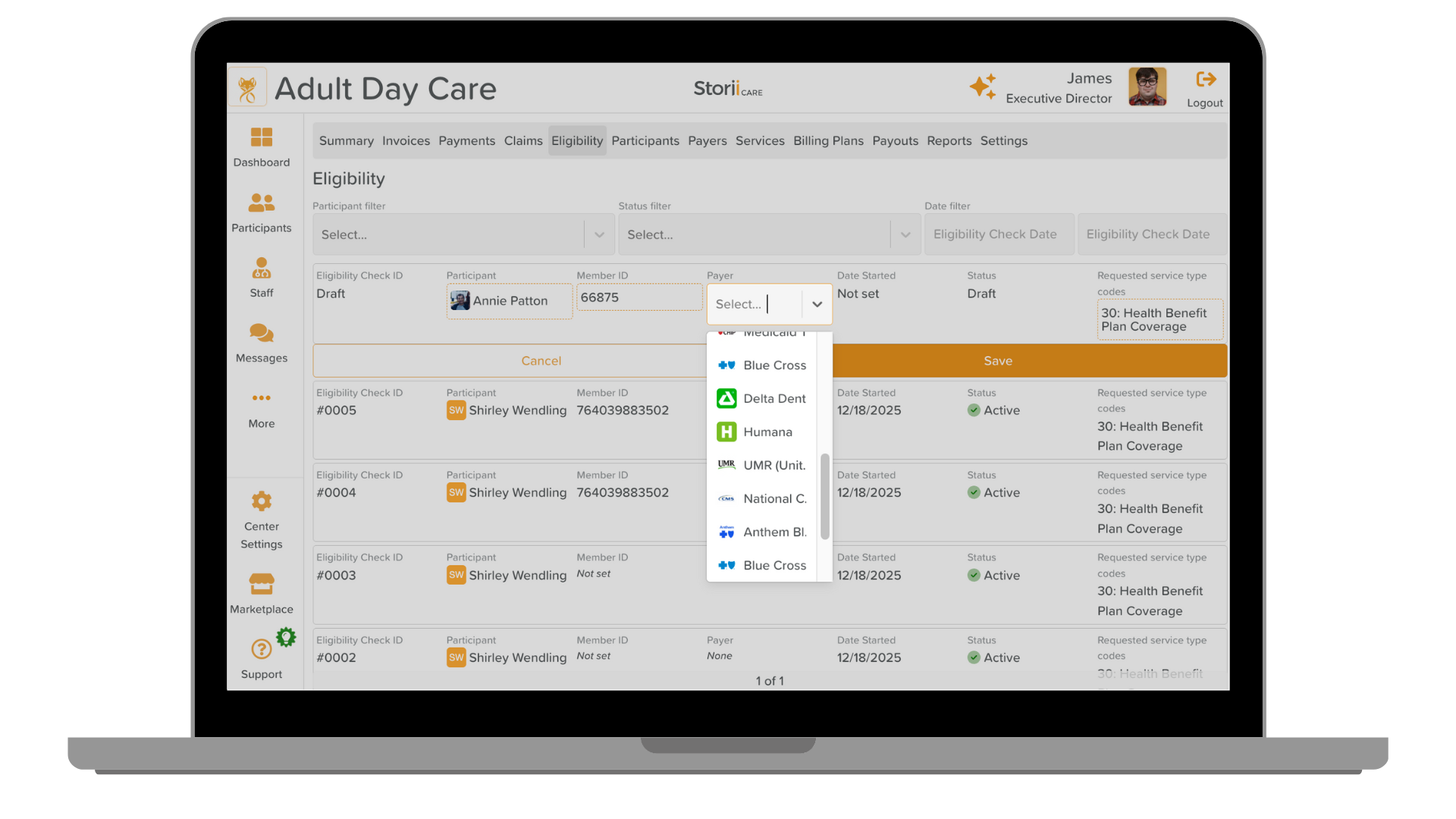
Como realizar verificações de elegibilidade no StoriiCare
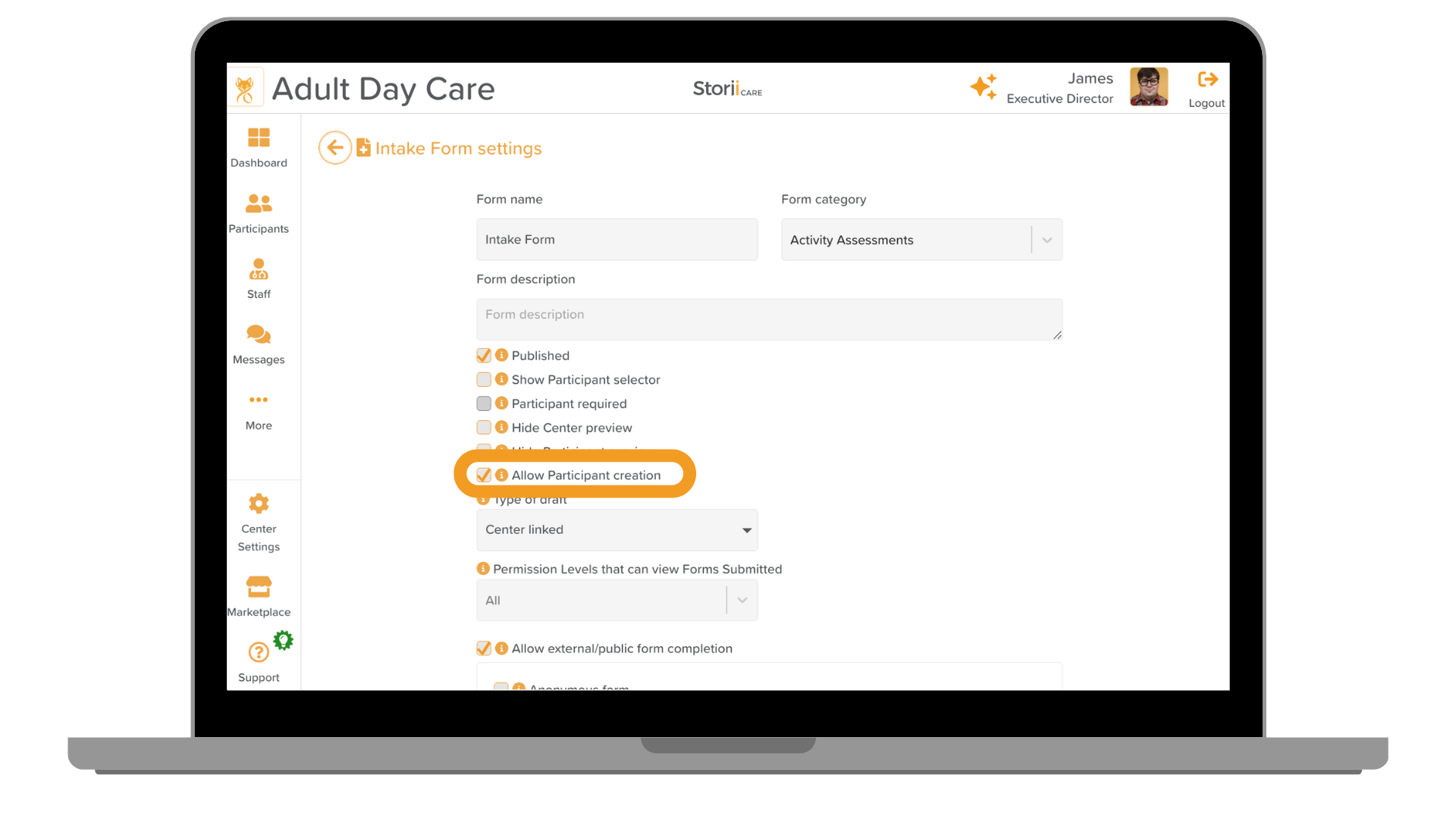
🙂 Criação de perfil de participante usando formulários Matricular novos participantes ficou ainda mais fácil! Formulários crie perfis de participantes automaticamente assim que enviados - seja por preenchimento interno da equipe ou externo pelas famílias. Dados essenciais podem ser mapeados diretamente para a Ficha de Identificação usando Propriedades Vinculadas, reduzindo a duplicidade de dados e o trabalho administrativo. Esta atualização simplifica o preenchimento da documentação de matrícula por futuros clientes a partir de casa, garantindo que os perfis e informações críticas estejam prontos no StoriiCare no momento em que o formulário é enviado.
Esta atualização pode ser aplicada aos seus formulários existentes no StoriiCare. Basta acessar as configurações de qualquer formulário e garantir que a opção ‘Permitir Criação de Cliente/Participante’ esteja marcada - siga as novas instruções no Construtor de Formulários para alinhar quaisquer taxas de configuração necessárias. Fique atento a um webinar dedicado a esta atualização no início do próximo ano!
Confira este artigo: Criação de Perfil de Participante Usando Formulários
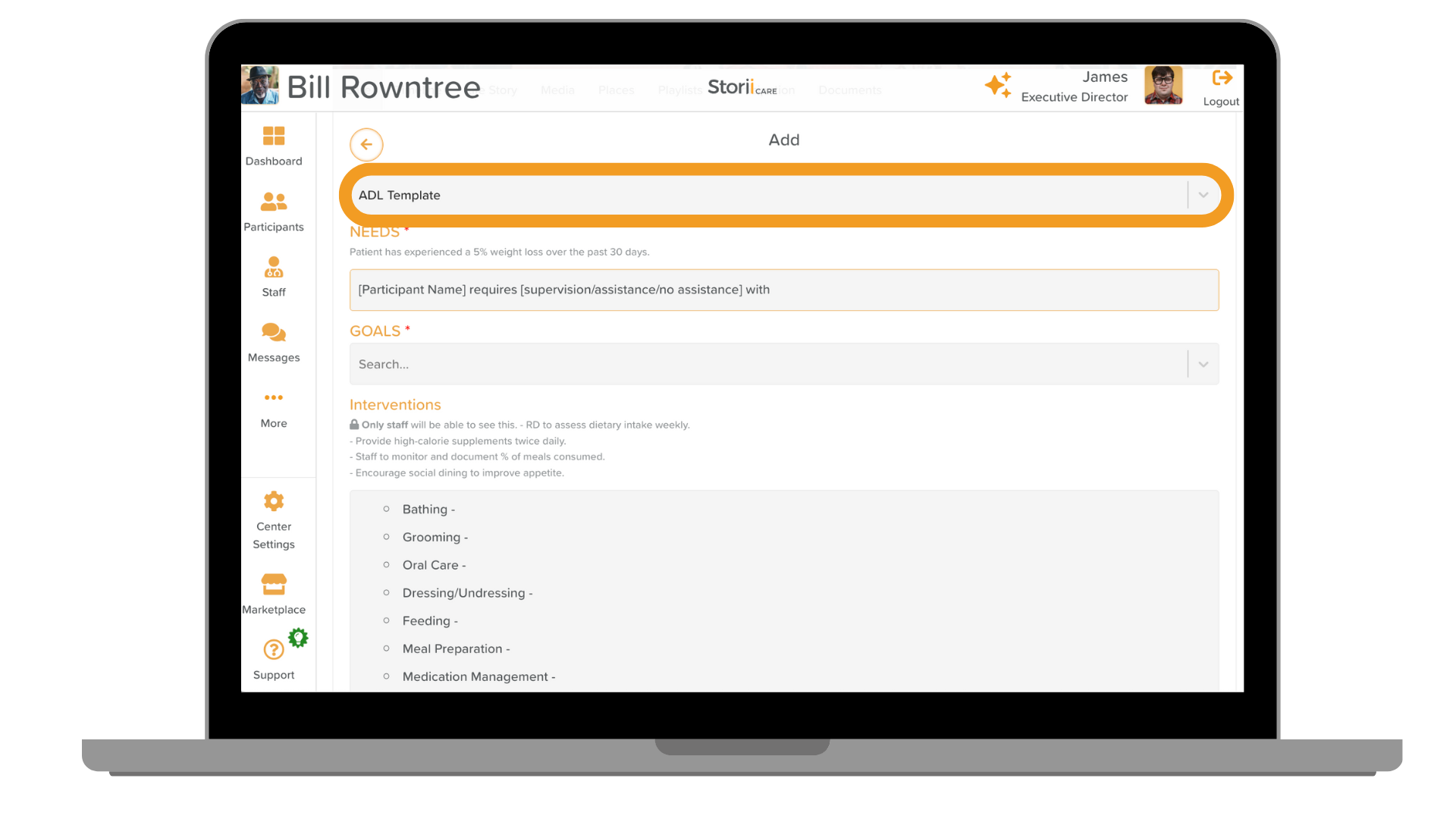
📋 Modelos de Plano de Cuidado
Modelos de Plano de Cuidado estão aqui para ajudar as equipes a economizar tempo e padronizar o planejamento de cuidados. Os modelos permitem que você pré-preencha seções de um Plano de Cuidado dentro de categorias específicas, facilitando a aplicação de uma linguagem consistente entre vários participantes - ideal para diagnósticos compartilhados ou formatos exigidos pelo estado. A equipe agora pode carregar um modelo ao adicionar um Plano de Cuidados, reduzindo a digitação repetitiva, minimizando erros e garantindo uma abordagem consistente e centrada na pessoa em toda a sua organização.
Confira este artigo: Como usar modelos de Plano de Cuidados
🚩 NOVO Painel de Conformidade
Temos o prazer de apresentar o novo Painel de Conformidade no StoriiCare, agora acessível diretamente pela barra lateral esquerda. Este novo recurso poderoso permite que você configure suas próprias verificações de conformidade do sistema para que possa monitorar proativamente a integridade dos dados e os requisitos de cuidados em toda a sua organização.
As verificações de conformidade podem ser configuradas para Sinais Vitais, Notase a Ficha de Identificação, com módulos adicionais planejados para futuras versões. O Painel de Conformidade fornece uma classificação de conformidade clara, com limites totalmente personalizáveis para corresponder às suas políticas internas e requisitos regulatórios.
Por exemplo, você pode acompanhar se os sinais vitais mensais estão sendo concluídos a cada 30 dias ou confirmar se campos críticos — como Alergias na Ficha de Identificação — estão preenchidos para cada participante. É uma maneira fácil e flexível de manter-se pronto para auditorias e confiante em seus dados.
Confira este artigo: Um guia para usar o recurso de Conformidade
✍️ Modelos de Notas de Evolução
Ofereça à sua equipe uma estrutura consistente para documentação com modelos reutilizáveis. Ótimo para notas SOAP, passagens de plantão, acompanhamento de tratamento de feridas e muito mais. Acesse Configurações de Notas de Evolução para ativar esta funcionalidade e criar seus próprios Modelos de notas!
Confira este artigo: Como usar modelos de notas de evolução
💊 Mapa de Medicação (MAR): Imprimir próximo mês
Você pediu: os mapas de medicação agora podem ser preparados antes que o novo mês comece.
Como funciona:
- Em MAR, escolha o próximo mês no seletor e baixe/imprima o MAR mensal completo com antecedência — chega de esperar até o dia 1º.
🔤 Filtros em Ordem Alfabética
Para melhorar a consistência e a facilidade de localização, os filtros de Funcionários e Participantes em todas as funcionalidades do StoriiCare serão exibidos em ordem alfabética .
Para definir sua ordem preferida (de A a Z ou de Z a A), vá para as abas de Funcionários e Participantes e clique no botão de Ordenação (lado direito). Esta configuração é específica para cada membro da equipe.
Além disso, os usuários agora podem classificar Grupos e Agendamentos , bem como exportações, alfabeticamente. Para fazer isso, clique no botão de Ordenação (à direita) para aplicar sua preferência.
Confira este artigo: Como colocar listas de participantes em ordem alfabética
➡️ Novo ícone de Tarefas
Uma seta verde aparece quando uma tarefa é gerada no login, e uma seta vermelha aparece quando é gerada no logout. Isso facilita a identificação rápida, por parte dos usuários, de quais tarefas estão sendo criadas automaticamente. Esses ícones — juntamente com um raio— também aparecem em Ações Recentes para quaisquer tarefas acionadas por uma automação.
Confira este artigo: Como configurar tarefas agendadas
.png)
Tem perguntas ou sugestões sobre o que devemos criar a seguir? Adoraríamos ouvir você. Seu feedback impulsiona o StoriiCare — nos vemos na próxima atualização
❤ da equipe StoriiCare


.png)